【プログラミング】メルカリ商品をスクレイピングし、価格を自動で取得してみよう。

欲しいカードや限定商品が、安く出品された瞬間に買いたい…
でも毎日・毎分メルカリを手動でチェックするのは大変。
そんな時に今回作成する自動監視ツールを使用すればそんな問題ともおさらばだ。
スクレイピングとは
スクレイピングとは、ウェブサイトから情報を自動的に抽出する手法だ。
プログラムを使ってウェブページを読み込み、HTMLの構造を解析して必要なデータを取得することを指す。
これにより、大量のデータを手動でコピーすることなく効率的に収集できる。
サンプルコード
スクリプトファイルの用意
まずは、Pythonのファイルを用意する。
app.py
#app.pyapp.pyはスクレイピングを行うPythonスクリプトだ。
ディレクトリ構造をツリーで確認
project_directory/    # プロジェクトのルートフォルダ
└── app.pyファイルは上記のディレクトリ構造で配置する。
これで準備は完了だ。
メルカリをスクレイピングするコード
import time
from selenium import webdriver
from selenium.webdriver.chrome.service import Service
from selenium.webdriver.common.by import By
from selenium.webdriver.support.ui import WebDriverWait
from selenium.webdriver.support import expected_conditions as EC

# --- 設定部分 ---
# 監視したいメルカリの検索結果ページのURL
TARGET_URL = "https://jp.mercari.com/search?keyword=ストームエメラルダ&sort=created_time&order=desc&status=on_sale"
# 欲しい価格(以下)
TARGET_PRICE = 500
# 監視の間隔(秒)
CHECK_INTERVAL = 300


def check_mercari_price():
    options = webdriver.ChromeOptions()
    options.add_argument('--window-size=1000,500')
    options.add_argument("user-agent=Mozilla/5.0 (Windows NT 10.0; Win64; x64) AppleWebKit/537.36 (KHTML, like Gecko) Chrome/120.0.0.0 Safari/537.36")
    driver = webdriver.Chrome(service=Service(), options=options)

    try:
        driver.get(TARGET_URL)
        wait = WebDriverWait(driver, 10)
        wait.until(
            EC.presence_of_element_located((By.XPATH, '//li[@data-testid="item-cell"]'))
        )
        item_cells = driver.find_elements(By.XPATH, '//li[@data-testid="item-cell"]')

        if not item_cells:
            print("検索結果の商品が見つかりませんでした。")
            return

        first_item = item_cells[0]

        name_elem = first_item.find_element(By.XPATH, './/*[contains(@class, "itemName__")]')
        price_elem = first_item.find_element(By.XPATH, './/*[contains(@class, "number__")]')

        latest_name = name_elem.text
        latest_price_str = price_elem.text
        latest_price = int(latest_price_str.replace("¥", "").replace(",", "").replace("円", "").strip())

        print(f"----------------------------------------")
        print(f"【最新出品】: {latest_name}")
        print(f"【現在価格】: {latest_price:,}円  (希望価格: {TARGET_PRICE:,}円)")

        if latest_price <= TARGET_PRICE:
            print(f"希望価格以下の商品が出品されました! ({latest_price:,}円)")
        else:
            print("希望価格以下の商品はまだ出品されていません。")

    except Exception as e:
        print(f"エラーが発生しました: {e}")

    finally:
        driver.quit()


if __name__ == "__main__":
    print("メルカリの価格監視を開始...")

    while True:
        check_mercari_price()
        print(f"次回チェックまで {CHECK_INTERVAL} 秒待機...\n")
        time.sleep(CHECK_INTERVAL)
コードの説明
モジュールの読み込み
import time
from selenium import webdriver
from selenium.webdriver.chrome.service import Service
from selenium.webdriver.common.by import By
from selenium.webdriver.support.ui import WebDriverWait
from selenium.webdriver.support import expected_conditions as ECtime: スクリプトを指定時間停止(ループの間隔調整)させるために使用する。
webdriver: ブラウザ(Chrome)を自動操作するためのメインモジュール。
Service: ChromeDriverの起動やパス管理を行う。
By: 要素を検索する方法(XPATHやCSSセレクターなど)を指定する。
WebDriverWait / EC: JavaScriptによる動的な要素の読み込み完了を待機するために使用する。
監視条件の設定
# --- 設定部分 ---
# 監視したいメルカリの検索結果ページのURL
TARGET_URL = "https://jp.mercari.com/search?keyword=ストームエメラルダ&sort=created_time&order=desc&status=on_sale"

# 欲しい価格(以下)
TARGET_PRICE = 500

# 監視の間隔(秒)
CHECK_INTERVAL = 300
TARGET_URL: 監視したいメルカリの検索URLを設定する。今回は「ストームエメラルダ」の「販売中」「新着順」のページを指定している。
TARGET_PRICE: 通知したい希望価格の上限を数値で指定する。この例では 500 円以下になった際に判定を行う。
価格監視処理
def check_mercari_price():
    options = webdriver.ChromeOptions()
    options.add_argument('--window-size=1000,500')
    options.add_argument("user-agent=Mozilla/5.0 (Windows NT 10.0; Win64; x64) AppleWebKit/537.36 (KHTML, like Gecko) Chrome/120.0.0.0 Safari/537.36")
    driver = webdriver.Chrome(service=Service(), options=options)

    try:
        driver.get(TARGET_URL)
        wait = WebDriverWait(driver, 10)
        wait.until(
            EC.presence_of_element_located((By.XPATH, '//li[@data-testid="item-cell"]'))
        )
        item_cells = driver.find_elements(By.XPATH, '//li[@data-testid="item-cell"]')

        if not item_cells:
            print("検索結果の商品が見つかりませんでした。")
            return

        first_item = item_cells[0]

        name_elem = first_item.find_element(By.XPATH, './/*[contains(@class, "itemName__")]')
        price_elem = first_item.find_element(By.XPATH, './/*[contains(@class, "number__")]')

        latest_name = name_elem.text
        latest_price_str = price_elem.text
        latest_price = int(latest_price_str.replace("¥", "").replace(",", "").replace("円", "").strip())

        print(f"----------------------------------------")
        print(f"【最新出品】: {latest_name}")
        print(f"【現在価格】: {latest_price:,}円  (希望価格: {TARGET_PRICE:,}円)")

        if latest_price <= TARGET_PRICE:
            print(f"希望価格以下の商品が出品されました! ({latest_price:,}円)")
        else:
            print("希望価格以下の商品はまだ出品されていません。")

    except Exception as e:
        print(f"エラーが発生しました: {e}")

    finally:
        driver.quit()
ブラウザの起動設定
    options = webdriver.ChromeOptions()
    options.add_argument('--window-size=1000,500')
    options.add_argument("user-agent=Mozilla/5.0 (Windows NT 10.0; Win64; x64) AppleWebKit/537.36 (KHTML, like Gecko) Chrome/120.0.0.0 Safari/537.36")
    driver = webdriver.Chrome(service=Service(), options=options)
webdriver.ChromeOptions() でブラウザの設定を行う。
ウインドウサイズを指定し、通常のPCブラウザとして認識させるために User-Agent を設定してアクセス遮断を防いでいる。
対象ページへアクセスと描画待機
try:
        driver.get(TARGET_URL)
        wait = WebDriverWait(driver, 10)
        wait.until(
            EC.presence_of_element_located((By.XPATH, '//li[@data-testid="item-cell"]'))
        )
        item_cells = driver.find_elements(By.XPATH, '//li[@data-testid="item-cell"]')
driver.get() で設定したURLを開く。
メルカリはJavaScriptで動的に読み込まれるため、WebDriverWait を使い、商品セル要素(data-testid="item-cell")が描画されるまで最大10秒間待機している。
最新商品の要素取得とガード節
Python
        if not item_cells:
            print("検索結果の商品が見つかりませんでした。")
            return

        first_item = item_cells[0]
取得した商品リストが空の場合はメッセージを出して処理を中断(return)する。
リストが存在する場合は、先頭([0])にある最新出品の商品を取得する。
商品名と価格の取得・データ整形
Python
        name_elem = first_item.find_element(By.XPATH, './/*[contains(@class, "itemName__")]')
        price_elem = first_item.find_element(By.XPATH, './/*[contains(@class, "number__")]')

        latest_name = name_elem.text
        latest_price_str = price_elem.text
        latest_price = int(latest_price_str.replace("¥", "").replace(",", "").replace("円", "").strip())
先頭の商品要素の中から、商品名(itemName__)と価格(number__)を絞り込んで抽出する。
取得した価格文字列(例: "¥500")から replace() で「¥」「,」「円」を除去し、int() で数値化して比較できるようにしている。
判定結果の出力
Python
        print(f"----------------------------------------")
        print(f"【最新出品】: {latest_name}")
        print(f"【現在価格】: {latest_price:,}円  (希望価格: {TARGET_PRICE:,}円)")

        if latest_price <= TARGET_PRICE:
            print(f"希望価格以下の商品が出品されました! ({latest_price:,}円)")
        else:
            print("希望価格以下の商品はまだ出品されていません。")
最新出品の情報と希望価格をターミナルに表示する。
if 文で現在の価格が希望価格以下かどうかを判定し、メッセージを出力する。
エラー処理とブラウザのクローズ
Python
    except Exception as e:
        print(f"エラーが発生しました: {e}")

    finally:
        driver.quit()
途中で問題が起きた場合は except でエラー内容を表示する。
finally ブロックに driver.quit() を書くことで、成功・失敗にかかわらず確実にブラウザを終了させる。
ソースコードのダウンロード
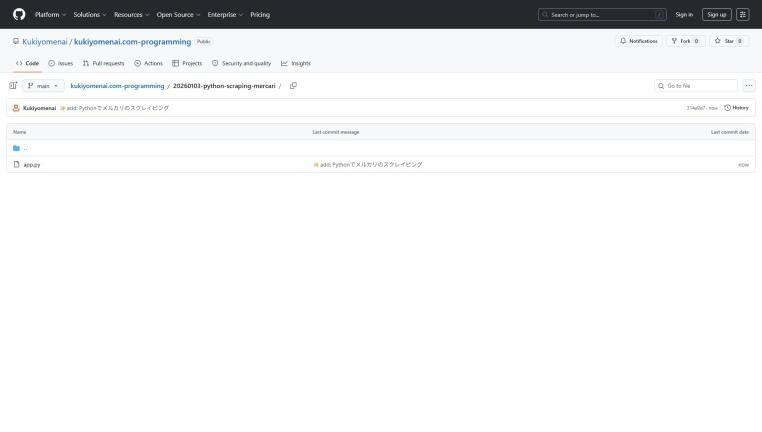
これらのコードはGithubにアップロードしている。
上記のページに、すべてアップロードされているので、必要な方はぜひ使ってみてくれ。
まとめ
今回はPythonとSeleniumを使って、メルカリの特定商品を価格自動監視するツールを作成した。
メルカリのようなJavaScriptで動的にコンテンツが読み込まれるサイトでも、WebDriverWait による待機処理を行うことで確実にデータを取得できる。
さらに実用性を高めたい場合は、希望価格以下の商品が見つかった際に LINE Notify や Discord へ自動通知する処理を追加してみるのもおすすめだ。
ぜひ試してみてくれ。





コメントはこちらから